In this Pandas tutorial, we will learn how to work with Excel files (e.g., .xls or .xlsx files) in Python. It will provide an overview of how to use Pandas to load .xlsx files and write to Excel spreadsheets.
In the first section, we will go through, with examples, how to use Pandas read_excel to: 1) read an Excel file, 2) read specific columns from a spreadsheet, 3) read multiple spreadsheets, and combine them into one dataframe. Furthermore, we are going to learn how to read many Excel files and convert data to specific data types (e.g., using Pandas dtypes).
When we have done this, we will continue by learning how to use Pandas to write Excel files, including how to name the sheets and write to multiple sheets. Make sure to check out the newer post about reading xlsx files in Python with openpyxl, as well.
- Read the How to import Excel into R blog post if you need an overview of how to read xlsx files into R dataframes.
How to Install Pandas
Before we continue with this Pandas read and write Excel files tutorial, there is something we need to do: installing Pandas (and Python, of course, if it’s not installed). We can install Pandas using Pip, provided we have Pip installed. See here how to install pip.
# Linux Users
pip install pandas

# Windows Users
python pip install pandasCode language: Bash (bash)
Note: if pip tells us there’s a newer version, we may want to upgrade it. In a recent post, we cover how to upgrade pip to the latest version. Finally, before going on to the next section, you can use pip to install a certain version (i.e., older) of a package such as Pandas.
Installing Anaconda Scientific Python Distribution
Another great option to consider is to install the Anaconda Python distribution. This is really an easy and fast way to get started with computer science. No need to worry about installing the packages you need to do computer science separately.
Both methods are explained in this tutorial. Now, in a more recent blog post, we also cover how to install a Python package using pip, conda, and Anaconda. In that post, you will find more information about installing Python packages.
How to Read Excel Files to Pandas Dataframes:
Can Pandas read xlsx files? The short answer is, of course, “yes”. In this section, we are going to learn how to read Excel files and spreadsheets to Pandas dataframe objects. All examples in this Pandas Excel tutorial use local files. Note that read_excel you can also load Excel files from a URL to a dataframe. As always when working with Pandas, we have to start by importing the module:
import pandas as pdCode language: Python (python)Now it’s time to learn how to use Pandas read_excel to read data from an Excel file. The easiest way to use this method is to pass the file name as a string. If we do not pass any other parameters, such as a sheet name, it will read the first sheet by index. In the first example, we are not going to use any parameters:
# Pandas read xlsx
df = pd.read_excel('MLBPlayerSalaries.xlsx')
df.head()Code language: Python (python)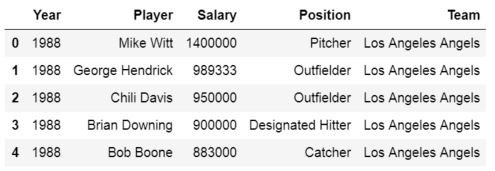
Here, the Pandas read_excel method reads the data from the Excel file into a Pandas dataframe object. We then stored this dataframe into a variable called df. Note: if you want to find the highest value in a Dictionary in Python you can also use Pandas and max().
When using read_excel Pandas will, by default, assign a numeric index or row label to the dataframe, and as usual, when int comes to Python, the index will start with zero. We may have a reason to leave the default index as it is.
For instance, if your data doesn’t have a column with unique values that can serve as a better index. In case there is a column that would serve as a better index, we can override the default behavior.
Setting the Index Column when Reading xls File
This is done by setting the index_col parameter to a column. It takes a numeric value for setting a single column as index or a list of numeric values for creating a multi-index. We use the column ‘Player’ as indices in the example below. Note, these are not unique and it may, thus, not make sense to use these values as indices.
df = pd.read_excel('MLBPlayerSalaries.xlsx', sheet_names='MLBPlayerSalaries', index_col='Player')Code language: Python (python)Now, if one or two of your columns, for instance, are objects you use Pandas to_datetime to convert a column, properly.
Importing an Excel File to Pandas in Two Easy Steps:
Time needed: 1 minute
Here is a quick answer: How do you import an Excel file into Python using Pandas? Importing an Excel file into a Pandas dataframe only requires two steps, given that we know the path, or URL, to the Excel file:
- Import Pandas
In the script type import pandas as pd

- Use Pandas read_excel method
Next step is to type df = pd.read_excel(FILE_PATH_OR_URL)
Remember to change FILE_PATH_OR_URL to the path or the URL of the Excel file.
Now that we know how easy it is to load an Excel file into a Pandas dataframe we are going to continue learning more about the read_excel method.
Reading Specific Columns using Pandas read_excel
When using Pandas read_excel we will automatically get all columns from an Excel file. If we, for some reason, do not want to parse all columns in the Excel file, we can use the parameter usecols. Let us say we want to create a dataframe with the columns Player, Salary, and Position, only. We can do this by adding 1, 3, and 4 in a list:
cols = [1, 2, 3]

df = pd.read_excel('MLBPlayerSalaries.xlsx', sheet_names='MLBPlayerSalaries', usecols=cols)
df.head()Code language: Python (python)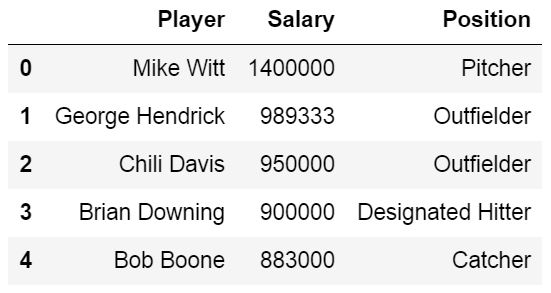
According to the read_excel documentation, we should be able to put in a string. For instance, cols='Player:Position' should give us the same results.
Handling Missing Data using Pandas read_excel
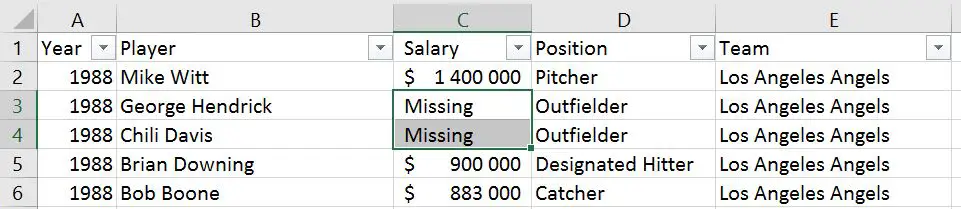
If our data has missing values in some cells and these missing values are coded in some way, like “Missing”, we can use the na_values parameter.
Pandas Read Excel Example with Missing Data
In the example below, we are using the parameter na_values and we are putting in a string (i.e., “Missing’):
df = pd.read_excel('MLBPlayerSalaries_MD.xlsx', na_values="Missing", sheet_names='MLBPlayerSalaries', usecols=cols)
df.head()Code language: Python (python)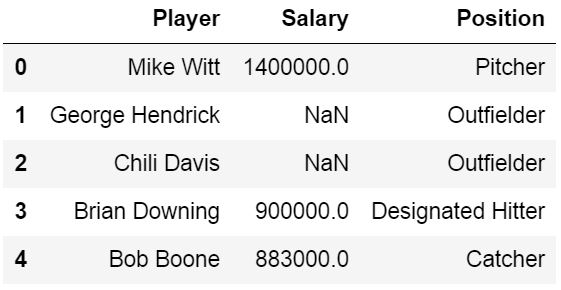
In the read excel examples above we used a dataset that can be downloaded from this page.
- Read the post Data manipulation with Pandas for three methods on data manipulation of dataframes, including missing data.
- Learn easy methods to clean data using Pandas and Pyjanitor
How to Skip Rows when Reading an Excel File
We will learn how to skip rows when loading an Excel file using Pandas. For this read excel example, we will use data that can be downloaded here.
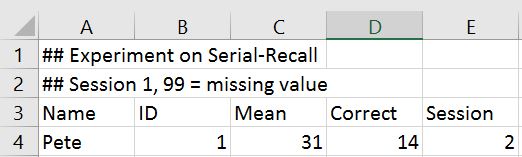
In the following Pandas read_excel example we load the sheet ‘session1’, which contains rows that we need to skip (these rows contain some information about the dataset).
We will use the parameter sheet_name=’Session1′ to read the sheet named ‘Session1’ (the example data contains more sheets; e.g., ‘Session2’ will load that sheet). Note, the first sheet will be read if we don’t use the sheet_name parameter. In this example, the important part is the parameter skiprow=2. We use this to skip the first two rows:
df = pd.read_excel('example_sheets1.xlsx', sheet_name='Session1', skiprows=2)
df.head()Code language: Python (python)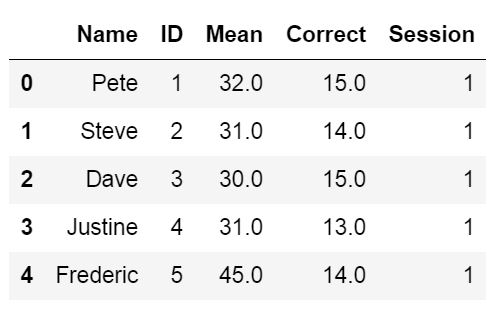
Another way to get Pandas read_excel to read from the Nth row is by using the header parameter. In the example Excel file we use here, the third row contains the headers, and we will use the parameter header=2 to tell Pandas read_excel that our headers are on the third row.
df = pd.read_excel('example_sheets1.xlsx', sheet_name='Session1', header=2)Code language: Python (python)Now, if we want to read from the second row, we change the number in the skiprows and header arguments to 2, and so on.
Reading Multiple Excel Sheets to Pandas Dataframes
In this section, of the Pandas read excel tutorial, we are going to learn how to read multiple sheets. Our Excel file, example_sheets1.xlsx’, has two sheets: ‘Session1’, and ‘Session2.’ Each sheet has data from an imagined experimental session. In the next example we are going to read both sheets, ‘Session1’ and ‘Session2’. Here is how to use Pandas to read multiple sheets:
df = pd.read_excel('example_sheets1.xlsx',
    sheet_name=['Session1', 'Session2'], skiprows=2)Code language: Python (python)
By using the parameter sheet_name, and a list of names, we will get an ordered dictionary containing two dataframes:
dfCode language: Python (python)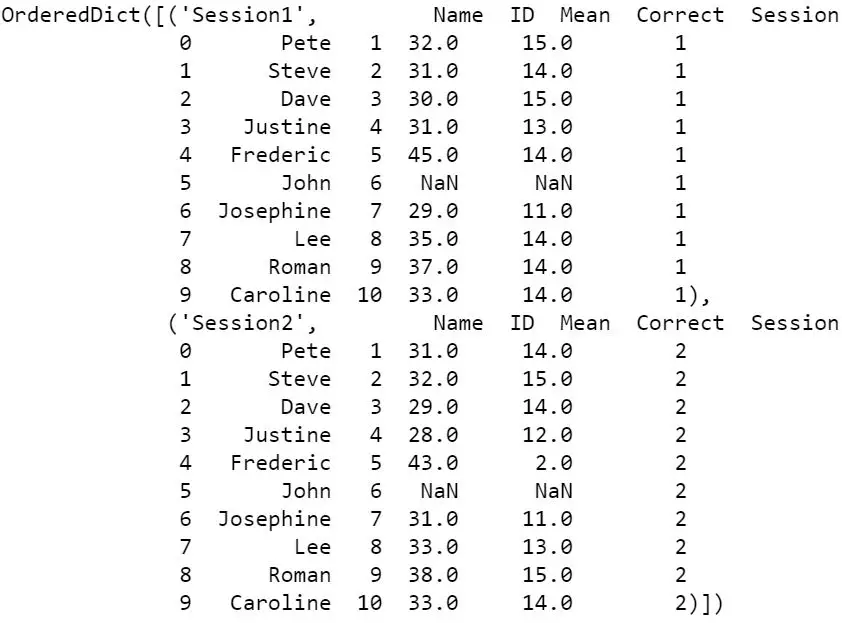
When working with Pandas read_excel we may want to join the data from all sheets (in this case sessions). Merging Pandas dataframes is quite easy; we just use the concat function and loop over the keys (i.e., sheets):
df2 = pd.concat(df[frame] for frame in data.keys())Code language: Python (python)In the example Excel file, there is a column that identifies the dataset (e.g., session number). However, we may not have that kind of information in our Excel file. To merge the two dataframes and add a column depicting which session, we can use a for loop:
dfs = []
for framename in data.keys():
    temp_df = data[framename]
    temp_df['Session'] = framename
    dfs.append(temp_df)

df = pd.concat(dfs)Code language: Python (python)
In the code above, we start by creating a list and then loop through the keys in that list of dataframes. Finally, we create a temporary dataframe, extract the sheet name, and add it to the ‘Session’ column.
Pandas Read Excel: How to Read All Sheets
Now, it is, of course, possible that when we want to read multiple sheets we also want to read all the sheets in the Excel file. That is, if we want load all sheets from an Excel file to a dataframe it is possible. When reading multiple sheets and want all of them, we can set the sheet_name parameter to None.
all_sheets_df = pd.read_excel('example_sheets1.xlsx', sheet_name=None)Code language: Python (python)Pandas Read Excel: Reading Many Excel Files
In this section of the tutorial, we will learn how to load many Excel files into a Pandas dataframe because, in some cases, we may have a lot of files containing data from, let us say, different experiments. In Python, we can use the modules os and fnmatch to read all files in a directory. Finally, we use list comprehension to use read_excel on all files we found:
import os, fnmatch
xlsx_files = fnmatch.filter(os.listdir('.'), '*concat*.xlsx')

dfs = [pd.read_excel(xlsx_file) for xlsx_file in xlsx_files]Code language: Python (python)
If it makes sense, we can, again, use the function concat to merge the dataframes:
df = pd.concat(dfs, sort=False)Code language: Python (python)There are other methods for reading many Excel files and merging them. We can, for instance, use the module glob together with Pandas concat to read multiple xlsx files:
import glob
list_of_xlsx = glob.glob('./*concat*.xlsx')
df = pd.concat(list_of_xlsx)Code language: Python (python)
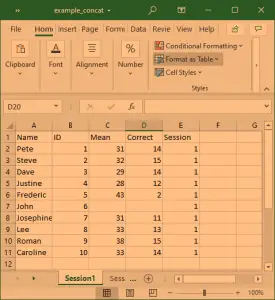
Note, the files in this example, where we read multiple xlsx files using Pandas, are located here. They are named example_concat.xlsx, example_concat1.xlsx, and example_concat3.xlsx and should be added to the same directory as the Python script. Another option, of course, is to add the file path to the files. E.g., if we want to read multiple Excel files, using Pandas read_excel method, and they are stored in a directory called “SimData”, we would do as follows:
import glob
list_of_xlsx = glob.glob('./SimData/*concat*.xlsx')
df = pd.concat(list_of_xlsx)Code language: Python (python)
Setting the Data Type for Data or Columns
If we need to, we can also, set the data type for the columns when reading Excel files using Pandas. Let us use Pandas to read the example_sheets1.xlsx again. In the Pandas read_excel example below; we use the dtype parameter to set the data type of some of the columns.
df = pd.read_excel('example_sheets1.xlsx',sheet_name='Session1',
                   header=1,dtype={'Names':str,'ID':str,
                                        'Mean':int, 'Session':str})Code language: Python (python)
We can use the method info to see the what data types the different columns have:
df.info()Code language: Python (python)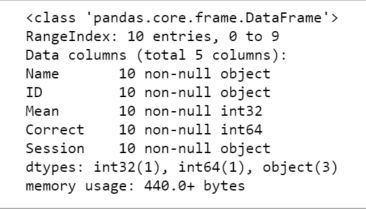
Writing Pandas Dataframes to Excel
Excel files can, of course, be created in Python using Pandas to_excel method. In this section of the post, we will learn how to create an excel file using Pandas. First, before writing an Excel file, we will create a dataframe containing some variables. Before that, we need to import Pandas:
import pandas as pdCode language: Python (python)The next step is to create the dataframe. We will create the dataframe using a dictionary. The keys will be the column names and the values will be lists containing our data:
df = pd.DataFrame({'Names':['Andreas', 'George', 'Steve',
                           'Sarah', 'Joanna', 'Hanna'],
                  'Age':[21, 22, 20, 19, 18, 23]})Code language: Python (python)
In this Pandas write to Excel example, we will write the dataframe to an Excel file using the to_excel method. Notably, when using Pandas in the code chunk below, we do not use any parameters.
df.to_excel('NamesAndAges.xlsx')Code language: Python (python)The Excel file created when using Pandas to_excel is shown below. Evidently, if we do not use the parameter sheet_name we get the default sheet name, ‘Sheet1’. Now, we can also see that a new column has been added to our Excel file containing numbers. These are the indices from the dataframe.
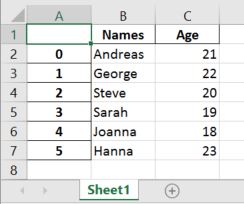
If we want our sheet to be named something else and we don’t want the index column we can add the following argument and parameters when we use Pandas to write to Excel:
df.to_excel('NamesAndAges.xlsx', sheet_name='Names and Ages', index=False)Code language: Python (python)Writing Multiple Pandas Dataframes to an Excel File:
In this section, we will use Pandas ExcelWriter, and Pandas to_excel to write multiple Pandas dataframes to a single Excel file. That is, if we have many dataframes we want to store in a single Excel file on different sheets, we can do this easily. However, we need to use Pandas ExcelWriter now:
df1 = pd.DataFrame({'Names': ['Andreas', 'George', 'Steve',
                           'Sarah', 'Joanna', 'Hanna'],
                   'Age':[21, 22, 20, 19, 18, 23]})

df2 = pd.DataFrame({'Names': ['Pete', 'Jordan', 'Gustaf',
                           'Sophie', 'Sally', 'Simone'],
                   'Age':[22, 21, 19, 19, 29, 21]})

df3 = pd.DataFrame({'Names': ['Ulrich', 'Donald', 'Jon',
                           'Jessica', 'Elisabeth', 'Diana'],
                   'Age':[21, 21, 20, 19, 19, 22]})

dfs = {'Group1':df1, 'Group2':df2, 'Group3':df3}
writer = pd.ExcelWriter('NamesAndAges.xlsx', engine='xlsxwriter')

for sheet_name in dfs.keys():
    dfs[sheet_name].to_excel(writer, sheet_name=sheet_name, index=False)

writer.save()Code language: Python (python)
In the code above, we create 3 dataframes and then add them to a dictionary. Note: the keys are the sheet names, and the values are the dataframes. After this is done, we create a writer object using the xlsxwriter engine. We then loop through the keys (i.e., sheet names) and add each sheet. Finally, the file is saved. Note, the final step is important as leaving this out will not give you the intended results.
Of course, there are other ways to store data. One of them is using JSON files. See the latest tutorial on how to read and write JSON files using Pandas to learn about one way to load and save data in the JSON format.
More resources on how to load data in different formats:
Summary: How to Work With Excel Files using Pandas
That was it! In this post, we have learned a lot! We have, among other things, learned how to:
- Read Excel files and Spreadsheets using read_excel
- Load Excel files to dataframes:
- Read Excel sheets and skip rows
- Merging many sheets to a dataframe
- Loading many Excel files into one dataframe
- Load Excel files to dataframes:
- Write a dataframe to an Excel file
- Taking many dataframes and writing them to one Excel file with many sheets
Leave a comment below if you have any requests or suggestions on what should be covered next! Check the post A Basic Pandas Dataframe Tutorial for Beginners to learn more about working with Pandas dataframe. That is after you have loaded them from a file (e.g., Excel spreadsheets)
Good article! Thank you very much!
Thank Christian! Glad you liked it! Also thanks for letting me know about the link. It should work now! Again, thanks. /Erik
Thanks Christian,
Just want to point a typo (I think – anyway strangely I did not manage to read another sheet than the first one for now) at sheet_nameS here
df = pd.read_excel(‘MLBPlayerSalaries.xlsx’, sheet_names=’MLBPlayerSalaries’, index_col=’Player’)
I just found that “sheetname” works for me whereas other sites write sheet_name…
Hey Hervé,
Thanks for your comment. I just checked my code and using sheet_name works for me. Did you get an error using sheet_name?
Best,
Erik
I did not get any error but the data from the 1st sheet are always displayed.
However if I use “sheetname=’…'”, then I can access other sheets.
Are there different versions of pandas?
Ok. I use Pandas 2.5.1, right now. If you want to find out which version you have installed; open up a terminal (e.g., Anaconda Prompt on Windows) and type
conda list pandas. You can also useprint(pd.__version__)after you have imported Pandas (import pandas as pd).Erik
My pandas version is 0.20.1.
Should I update it?
I would suggest you upgrade Pandas,
Best,
Erik
Very good tutorial.
I did not find the files to download. Are the available?
Thanks,
Hermes
Hey Hermes. Thanks for the comment. Glad you liked the tutorial. I must’ve forgotten to add the links to the example xlsx files. I’ve now added them but you can find all files used in this Pandas read_excel tutorial here: . Thanks for notifying me,
Best,
Erik
Very good article. This small examples are very useful to operate spreadsheets with many numeric data without the need to programm them all in Excel.
Thanks for your comment! Glad you liked the post.
Very good article. This small examples are very useful to operate spreadsheets with many numeric data without the need to programm them all in Excel.
Hey Scarlett, thanks for your comment.